

Getting started
Set up your profile
Your marketing identity — the name, headshot, and contact info buyers see on every page.
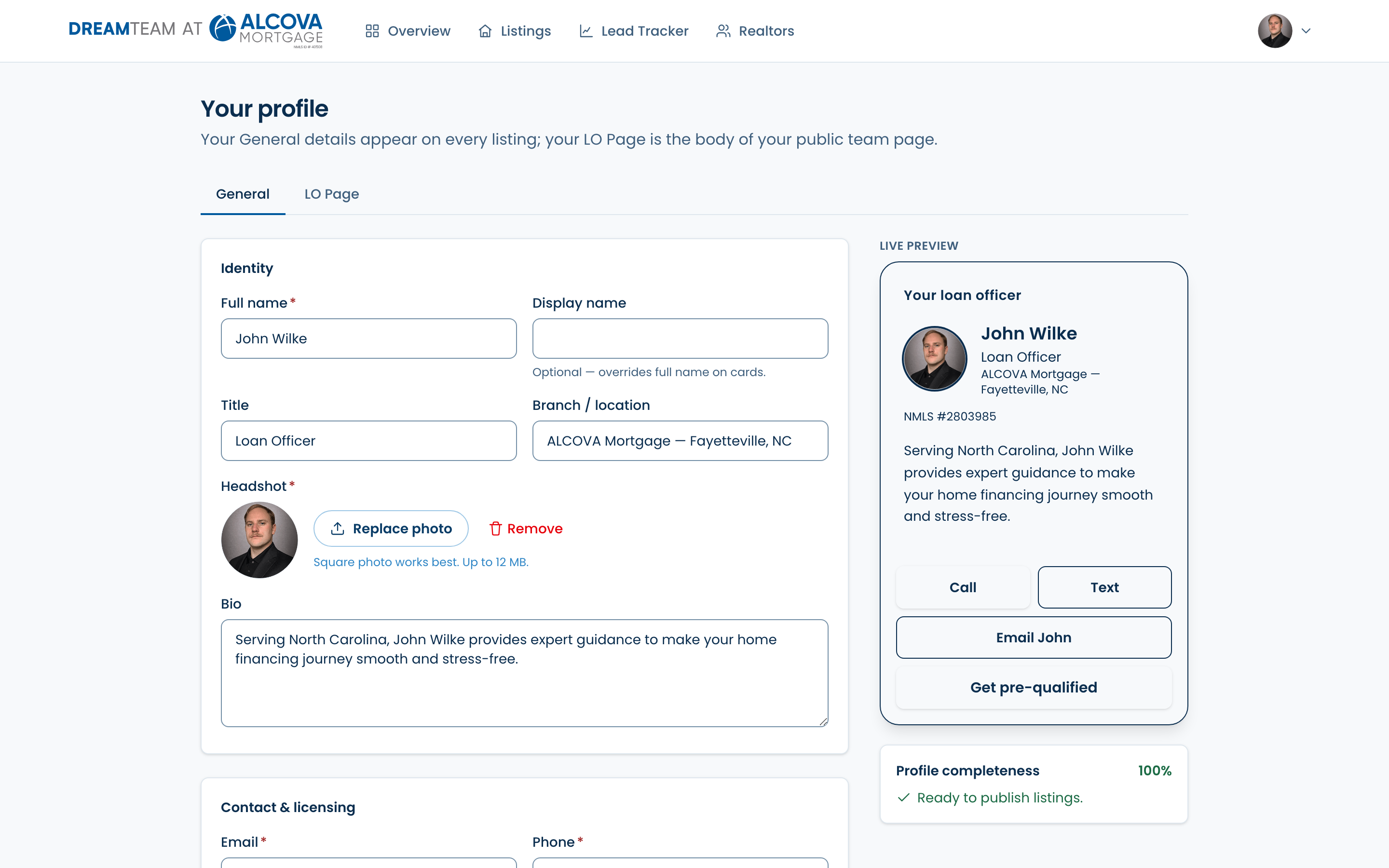
Your profile is the identity that appears on every listing you create and at the top of your public page. Open it from the account menu in the top-right under “Your profile,” or from the “Your public page” card on Overview. It has two tabs: General and LO Page.
The General tab
General holds the details that get reused everywhere. It's grouped into three cards:
- Identity — full name, an optional display name, title, branch/location, your headshot, and a short bio.
- Contact & licensing — email, phone, and your NMLS ID.
- Links & call-to-action — your apply/pre-qualification link, the label for your CTA button, a calendar link, your website, and social links (Facebook, Instagram, LinkedIn, YouTube).
A live preview on the right shows your loan-officer card exactly as buyers see it, and a “Profile completeness” meter shows your percentage and lists anything still required. Click “Save profile” when you're done.
What's required to publish
- Full name
- Phone number
- NMLS ID
- Headshot photo (a clear, square photo works best)
The LO Page tab is where you build the body of your public page with a drag-and-drop editor. That's covered in its own guide: “Build your public page.”