

Leads & pipeline
Work your pipeline in the Lead Tracker
A personal pipeline board for every lead — add, drag between stages, filter, and celebrate closings.
The Lead Tracker is your personal pipeline. It's private to you — every officer sees only their own leads. Open it from the top nav or the “Lead Tracker” card on Overview.
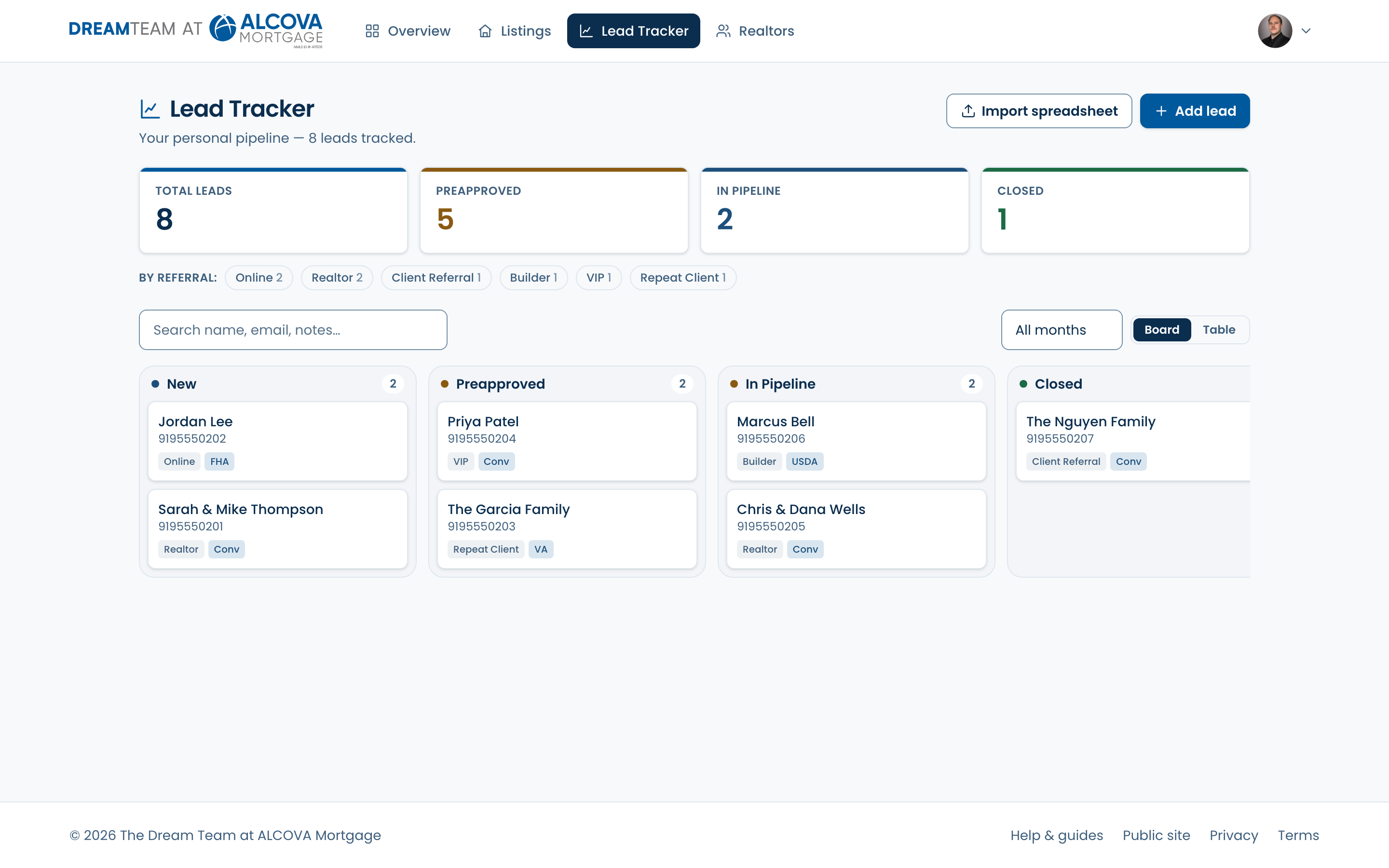
Board and table views
Switch between two views with the toggle at the top-right:
- Board — a kanban with a column per stage. Drag a card from one column to another to move a lead through your pipeline.
- Table — a sortable list with checkboxes for bulk actions and quick status changes.
The stages
Leads flow through six stages: New, Preapproved, In Pipeline, Closed, Nurture, and Lost. On the board these are the columns, in order.
Add and edit leads
- 1Click “Add lead” and fill in the details — only a name is required.
- 2Capture contact info, referral type and source, program type, status, dates, and notes (loan-officer notes and processing notes are both searchable).
- 3Click a lead any time to edit it, change its status inline, or delete it.
Filter and search
- Search by name, email, phone, referral, or notes.
- Filter by month, by referral source, and (in table view) by stage using the status pills.
- Four stat cards up top count your Total leads, Preapproved (and beyond), In pipeline, and Closed — they animate as your numbers change.
Bulk actions
In table view, tick several leads to reveal a bar with “Delete” and “Set status” so you can update or clear many at once.
Drag a lead into the “Closed” column and you'll get a little confetti burst — the reward for closing a deal.