

Listings
Design and customize a listing page
Pick a template, reorder sections, and add your own content with the drag-and-drop builder.
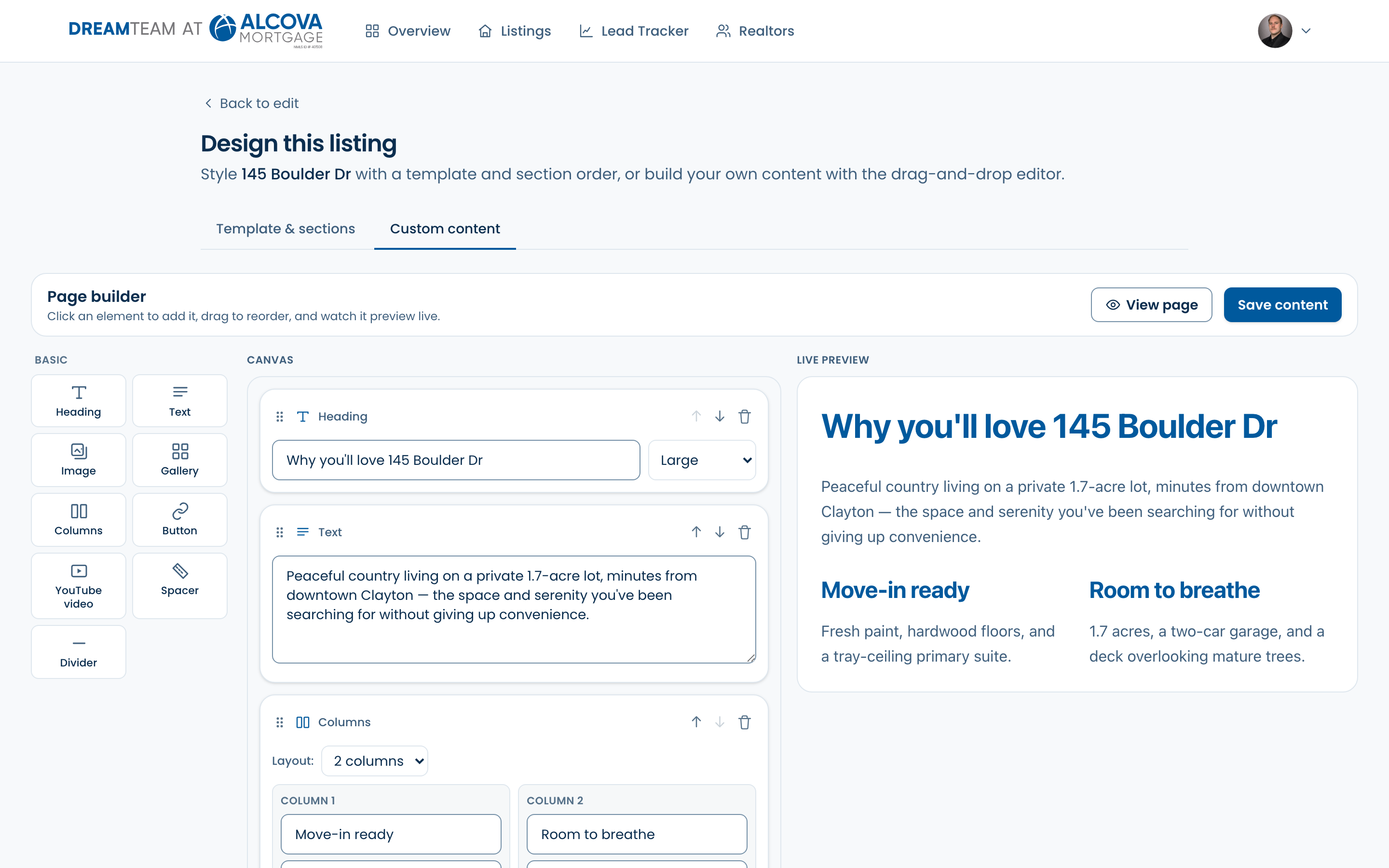
From the Edit page, click “Customize page layout” to open the builder (its page is titled “Design this listing”). It's one three-pane page: pick a template and order the standard sections on the left, add your own custom content in the middle, and see the live preview on the right.
Template & sections
- Template — choose Simple (clean & minimal), Luxury (dark & elegant), or Modern (bright & bold). It sets the page's visual style, not your content.
- Page sections — in the left pane, drag to reorder the built-in sections (Property details, Payment calculator, Location & neighborhood), or use the eye toggle to show or hide any of them.
- Template and section changes save automatically — there's no separate save button. Use “View page” to open the full listing in a new tab.
Custom content
Below the template and section controls, the same element palette from your public page is available — add a hero, gallery, columns (with other elements nested inside), callouts, stats, an FAQ, buttons, or video. Your custom content appears on the listing in its own band, above the standard property details, so the calculator and contact form are never disturbed.
- 1Click an element in the left palette to add it to the canvas in the middle.
- 2Edit it on its card, and drag to reorder.
- 3Watch the live preview on the right, then click “Save content.” It goes live immediately.
Custom content is optional. A listing looks great with just the standard sections — reach for the builder when you want to add something specific, like a neighborhood highlight or a video walk-through. For the full list of elements, see “Build your public page.”