

Your public page
Build your public page
Use the drag-and-drop builder on the LO Page tab to design your public loan-officer page.
Your public page lives at a friendly web address and introduces you to buyers and partners. You design its body on the LO Page tab of your profile using a three-pane builder: pick an element on the left, it drops onto the canvas in the middle, and the live preview on the right shows exactly what will publish.
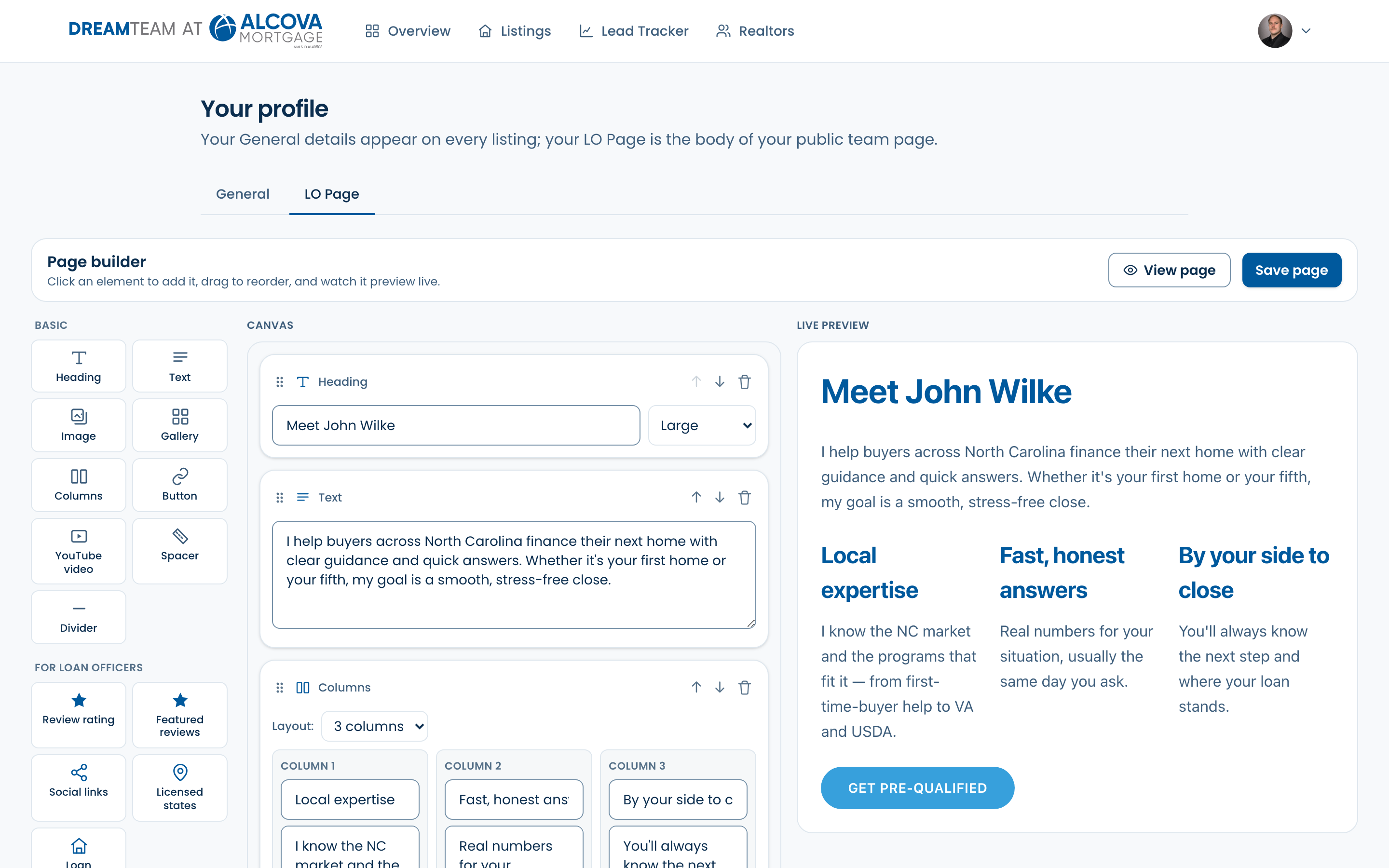
How the builder works
- 1Open Your profile and click the “LO Page” tab.
- 2Click an element in the left palette to add it to the bottom of the page.
- 3Edit the element's text and settings right on its card in the canvas.
- 4Drag a card by its handle to reorder it, or use the up/down arrows. Use the trash icon to remove one.
- 5Need more room? “Hide elements” or “Hide preview” in the toolbar collapses either side pane so the canvas fills the space.
- 6Watch the live preview update as you go, then click “Save page.” Use “View page” to open the real thing in a new tab.
Basic building blocks
- Heading — a section title, in Large or Medium size.
- Text — a paragraph of copy.
- Image — a single photo or graphic, with alt text and an optional caption.
- Gallery — a row of images.
- Columns — 2 or 3 side-by-side columns. Each column is its own mini-canvas: drop any other element into it (text, an image, a button, a stat, and more), so you can build real multi-column layouts.
- Button — a link styled as a button (for example, “Get pre-qualified”).
- YouTube video — paste a YouTube link to embed the video.
- Spacer and Divider — add vertical space or a horizontal line to separate sections.
Ready-made sections
The “Sections” group has richer, prebuilt layouts you can drop in and edit — great on their own or nested inside Columns:
- Hero — a bold banner with an eyebrow, headline, subtext, and a button, over an optional background image.
- Callout — a highlighted box with a heading, text, and an optional button.
- Stat — a big number with a label; stack a few inside Columns for a stats row.
- Quote — a testimonial quote with attribution.
- FAQ — an expandable question-and-answer list.
- Checklist — a list of points with checkmarks.
Your standard sections
New pages start with a few standard sections already in place — Get to know me, About, Down payment, Instagram, Education, and your reviews. They fill in from your profile, but each is editable: rename any heading, and point the Instagram, Education, or Down payment button at a different link than the one on your General tab. Reorder or delete any of them like any other block.
Blocks that pull in your own data
The “For loan officers” group fills itself in from data already on your account, so you don't retype anything:
- Review rating — your synced Experience.com star rating and review count.
- Featured reviews — pick specific reviews to show as cards.
- Social links — the social profiles from your General tab.
- Licensed states — the states you're licensed in, shown as pills.
- Loan programs — cards for the programs you offer, each linking to its info page.